One1D is the digital learning environment (ENT) deployed in French primary schools by Édifice. It brings together messaging, a homework diary, a class blog and document sharing on a single platform.
The difficulty for families is not the platform itself, but the fact that the login process varies depending on the school, user profile and region. A parent with an older child in secondary school and a younger one in primary school may have to use two separate portals, two sets of login details and two different mobile apps.
Parent account, student account and local ENT: three access points not to confuse
The first thing people do when trying to log in to One1D is search for the address online. The problem is that several results may appear: the national portal, the local academic portal and sometimes a login page specific to the town or department.
In the Hauts-de-France ENT, for example, families with children in secondary school use ÉduConnect, while those with children in primary school use the login details provided by the school. This distinction is rarely explained to parents at the start of the school year. An ÉduConnect login will not work on the primary school portal, and vice versa.
Parent and student accounts are separate. A parent account can be linked to several children, provided the school has correctly recorded the family relationship in the ENT directory. An article explaining how to log in to One1d with Hera Magazine describes this linking process, which is often overlooked in quick-start guides.
If a child does not appear in the parent area after logging in, the problem is usually not the password. It is the account link: only the school principal can link a child’s profile to the parent’s account in the ENT database.
First time logging in to One1D: activate your account without losing access
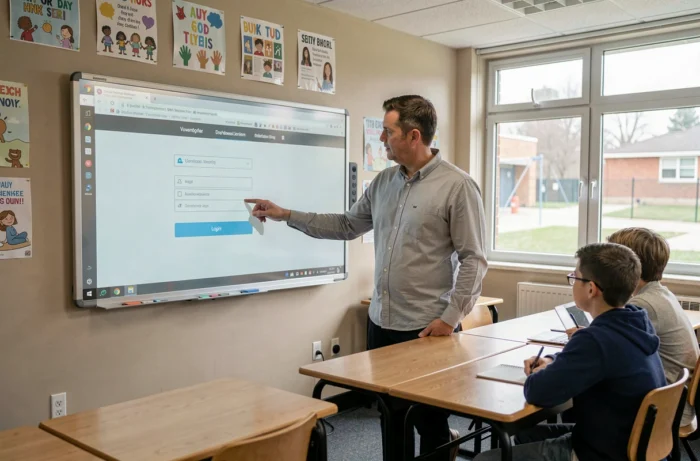
The school provides a letter (on paper or by email) containing a username and a temporary activation code. This code can only be used once. When logging in for the first time, the platform asks you to create a personal password and accept the terms of use.
Three mistakes are common at this stage:
- Confusing the activation code with the permanent password. The temporary code expires after the first use; trying to use it again will block access.
- Using a browser that autofills an old password. The browser’s password manager may save the old code and automatically enter it instead of the new password.
- Not checking the portal address. Each academy or local authority has its own login URL. Trying to log in to another region’s portal with local credentials will result in access being denied, without a clear error message.
The password must be changed the first time you log in; otherwise, the temporary code becomes unusable. If you lose your password, the recovery process depends on the local ENT: some offer email resets, while others require you to contact the school.
ONE Pocket app or browser: which access method should you choose?
The ONE Pocket app lets you check messages, the news feed and some apps from a phone or tablet. It is not required. The ENT can still be accessed through a browser on any connected device, including a smartphone.
Installing the app offers a practical advantage: push notifications alert you to new messages without having to open the browser. For a parent who simply wants to read a note from the teacher in the evening, it can save a lot of time.
Compatibility and technical limitations
ONE Pocket compatibility may vary depending on how old your phone is. The App Store and Google Play listings specify the minimum operating system version required, but this requirement can vary between app versions. Before installing, check the listing for the version of the app actually used by the school to avoid an unpleasant surprise.
On an older device that no longer supports updates, the mobile browser is the most reliable fallback. The One1D web version adapts to the screen size, although it is less intuitive to use than the dedicated app.
One1D login problems: identify the source of the issue
When login fails, the cause is rarely the same for every user profile. The table below summarizes the most common cases.
| Symptom | Likely cause | Action |
|---|---|---|
| “Unknown username” message | Wrong portal (URL for another academy or school level) | Check the exact address provided by the school |
| Password rejected after first login | The temporary code has already been used, but the password was not saved | Contact the school to get a new activation code |
| Child missing from the parent area | Child-parent link not set up in the ENT directory | Ask the principal to link the child’s profile to the parent account |
| ONE Pocket app won’t open | Operating system version is too old | Use the mobile browser or update the device |
Most access issues are caused by confusion between portals or an incomplete account link, not by a technical problem with the platform. Before resetting a password, check that you are using the correct login address; this resolves the issue in most cases.
When to contact the school instead of technical support
Édifice technical support handles server outages and app malfunctions. Anything related to login details, parent-child links and access permissions must be handled by the school. The school is the only point of contact for account issues, as it manages the ENT directory.
An email to the principal that includes the child’s name, class and type of issue (lost code, child not linked, incorrect profile) will speed up the process. Most requests come in at the start of the school year, and a clear message helps avoid unnecessary back-and-forth.
Logging in to One1D is straightforward once you have identified the right portal and activated the right profile. The real pitfall is not technical: it is the proliferation of access points across academies and school levels, which turns a routine task into an obstacle course for families new to the ENT.